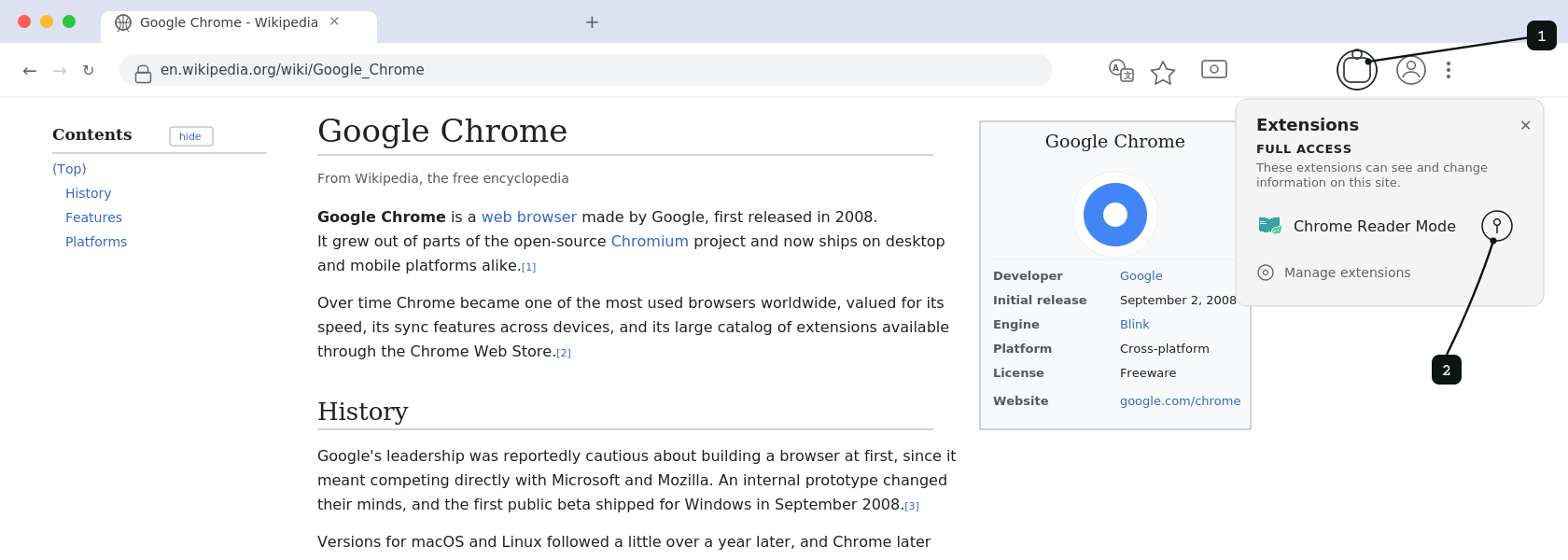
A clean, calm way to read anything online
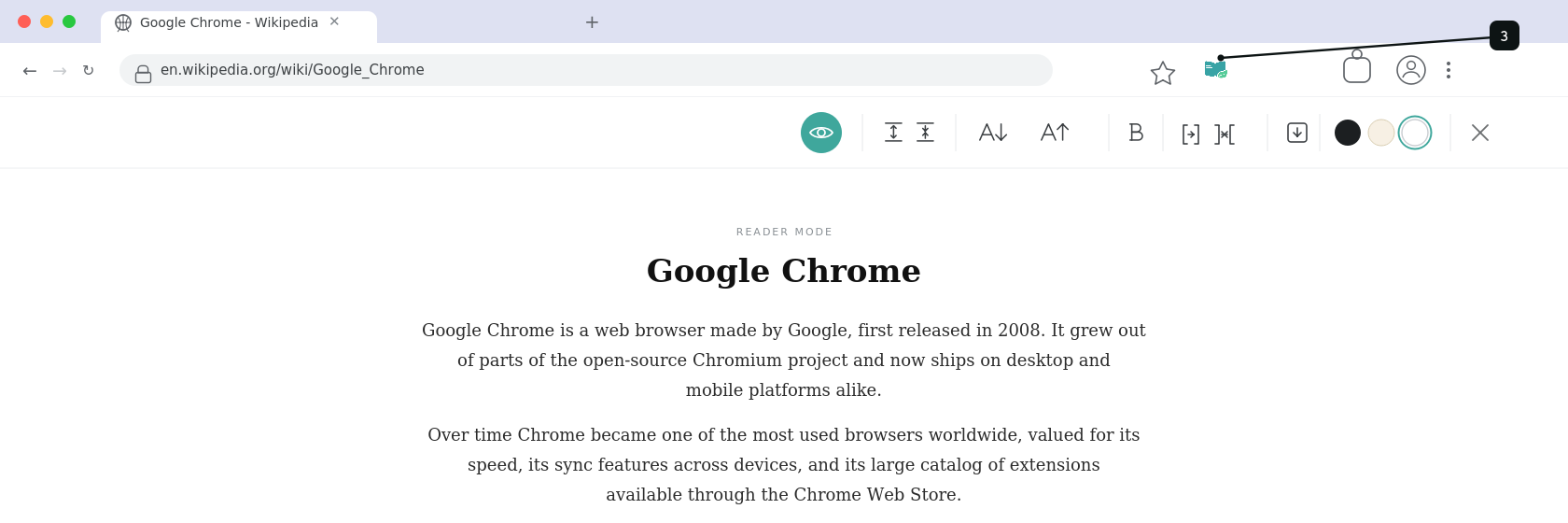
Chrome Reader Mode turns cluttered web pages into simple, readable text. It removes ads, pop-ups, and sidebars, and gives you a plain page built just for reading. You control how it looks: font size, spacing, width, and color theme.
It works the same way on news sites, blogs, long articles, and guides. No sign-up, no setup. Just click the icon and read.
No ads, no clutter
Banners, pop-ups, and side panels disappear. Only the title and the article text stay on the page.
Three themes for your eyes
Pick white, sepia, or dark. Switch anytime based on the light around you or the time of day.
Your own text size
Make the font bigger or smaller, change the line spacing, and set the width of the text column.
Focus mode
Hide the toolbar with one click. Nothing left on screen but the words you're reading.
Fast and light
A simpler page means less data and a faster load, even on a slow connection.
Works on any site
News, blogs, long reads, guides — the same clean view, everywhere you read.